Blogger Settings Guide: 16 Essential Settings to Configure

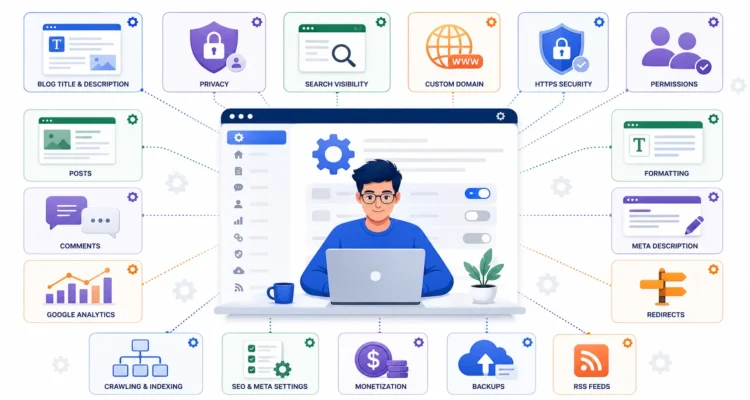
Blogger settings guide showing privacy HTTPS SEO comments analytics permissions and blog configuration

Creating a blog is only the first step. Once your Blogger site is live, the next important task is configuring the right Blogger settings. These settings control how your blog appears, who can access it, whether search engines can discover it, how HTTPS works, how comments are managed, how analytics are connected, and how your content is organized.

For beginners, the Blogger dashboard can look simple, but several Blogger settings can directly affect usability, privacy, publishing, security, and search visibility. Configuring them properly at the beginning can save you from fixing unnecessary problems later.

This updated guide explains the most important Blogger settings step by step using Blogger’s current configuration options. We will cover Basic settings, Privacy, Publishing, HTTPS, Permissions, Posts, Comments, Formatting, Meta Tags, redirects, crawling and indexing, monetization, backups, feeds, and other useful options.

If you have not created your blog yet, start with our guide on how to create a Blogger blog. For the complete blogging strategy, you can also visit our Blogging and SEO Guide.

Table of Contents

Where Can You Find Blogger Settings?

Before changing any Blogger settings, sign in to your Blogger dashboard.

  1. Visit Blogger and sign in with your Google Account.
  2. Select the blog you want to manage.
  3. From the left navigation menu, click Settings.
  4. Scroll through the available sections.

You can also review Google’s official Blogger settings documentation whenever you want to confirm the latest options.

The exact appearance of the dashboard may change over time, but the main Blogger settings are organized into logical sections.

1. Configure the Basic Blogger Settings

The first section contains some of the most important Blogger settings because these options define your blog’s basic identity.

Blog Title

The title is the main name of your blog.

Choose a title that:

  • Clearly represents your blog
  • Is easy to remember
  • Fits your niche
  • Can still make sense if your content expands

You can change the title later, but frequent branding changes can confuse returning visitors.

Description

Your blog description provides a short explanation of what your site covers.

A useful description should clearly summarize the main topic without becoming a list of keywords.

For example, a technology blog might describe itself as a site covering tutorials, software, artificial intelligence, gadgets, and digital tools.

Blog Language

Another important option within the basic Blogger settings is the blog language.

Select the primary language used by your content. If your blog is primarily written in English, choose English. If you publish primarily in Italian, French, Urdu, Spanish, or another language, select the appropriate option.

The language should reflect your actual content rather than being selected because you think one language will rank better.

Adult Content

Blogger includes an Adult Content setting.

Do not turn this ON for a normal family-safe blog.

Enable the adult-content option only when your blog actually contains material that requires the warning. When enabled, visitors may see a warning before accessing the blog.

This corrects a common misunderstanding in older Blogger settings tutorials that incorrectly tell normal blogs to enable this option.

Google Analytics Measurement ID

Blogger currently supports Google Analytics integration through a measurement ID beginning with G-.

The current setup is:

Blogger Dashboard → Settings → Basic → Google Analytics Measurement ID

Enter your Google Analytics measurement ID and save it.

Google explains the current process in its official Analytics with Blogger guide.

Google Analytics is optional, but connecting it can help you understand where visitors come from, what pages they read, and how people use the blog.

Favicon

A favicon is the small icon associated with your website in browser tabs and other interface areas.

Adding a recognizable favicon is a simple part of professional Blogger settings configuration because it helps reinforce your site’s visual identity.

2. Configure Blogger Privacy Settings

The Privacy section controls important discovery options.

These Blogger settings should be reviewed carefully if you want a public blog that can appear in search engines.

Listed on Blogger

This option allows people to link to or discover your blog through Blogger-related services.

For a normal public blog, leaving this enabled is generally reasonable.

Visible to Search Engines

This is one of the most important Blogger settings for a public website.

If you want search engines to be allowed to discover your public blog, enable:

Visible to search engines

Google’s current Blogger documentation describes this setting as allowing search engines to find your blog.

However, enabling this option does not guarantee indexing or rankings. It simply ensures that you are not intentionally preventing normal search discovery through this setting.

For additional search optimization, read our SEO settings for Blogger guide.

3. Review the Publishing Blogger Settings

The Publishing section controls your blog address and custom domain configuration.

These Blogger settings are particularly important if you plan to move beyond a free Blogspot address.

Blog Address

Your blog address is the URL people use to visit your website.

A standard Blogger address may look like:

exampleblog.blogspot.com

If you are still creating your blog, choose something short, memorable, and related to your brand.

Custom Domain

Blogger supports connecting your own registered domain.

For example:

Blogspot address:
exampleblog.blogspot.com

Custom domain:
www.exampleblog.com

Google’s official Blogger custom domain guide explains the required DNS configuration.

According to Blogger’s current settings documentation, a custom Blogger domain normally uses a subdomain such as www.example.com or blog.example.com, with Blogger providing a redirect option for the naked domain.

Redirect Domain

When using a custom domain, Blogger can redirect the root or naked domain to the configured Blogger domain.

For example:

example.com → www.example.com

This helps users reach the intended website address consistently.

4. Enable the Correct HTTPS Settings

Security is another important part of your Blogger settings.

HTTPS creates an encrypted connection between the user’s browser and your website.

HTTPS Availability

Google currently states that standard Blogspot addresses automatically use HTTPS. For custom domains, Blogger provides HTTPS availability settings.

You can review Google’s official HTTPS guide for Blogger for current instructions.

HTTPS Redirect

When HTTPS Redirect is enabled, visitors are directed to the HTTPS version of your blog.

For a normal public website using HTTPS, you generally want visitors reaching the secure version rather than different HTTP and HTTPS versions.

After adjusting these Blogger settings, test important pages to confirm that they load correctly.

Watch for Mixed Content

If your theme or old posts load resources through insecure HTTP URLs, you may encounter mixed-content problems after enabling HTTPS.

Google provides a dedicated Blogger mixed-content troubleshooting guide.

5. Configure Permissions

Permissions are essential Blogger settings if more than one person works on your blog or if you want to restrict who can read it.

Blog Admins and Authors

Blogger lets you invite other people to contribute to your blog.

Authors can create and edit their own posts, while administrators have broader control over the blog.

Be careful when granting administrator access because admins can manage important parts of your site.

Google currently allows up to 100 combined members, including authors, administrators, and readers. You can review the official Blogger access-control guide for details.

Reader Access

By default, Blogger blogs can be public.

The current Reader Access options include:

  • Public
  • Private to authors
  • Custom readers

For a normal website that you want people and search engines to access, Public is generally the appropriate choice.

Private options are useful for internal projects, private journals, classrooms, or restricted communities.

6. Configure Post Settings

The Posts section contains several useful Blogger settings that control how posts behave.

Maximum Posts Shown on Main Page

This setting controls the maximum number of posts shown on your blog’s main page.

Avoid showing an excessive number of full posts on the homepage because it can create an unnecessarily long page, depending on your theme.

Post Template

Blogger lets you create a reusable post template.

This can be helpful if every article uses the same structure, disclaimer, author note, or formatting elements.

Image Lightbox

When Image Lightbox is enabled, clicking images can open them in an overlay.

Whether you enable this depends on your site’s design and how you want visitors to interact with images.

7. Configure Blogger Comment Settings

Do not simply leave all comment Blogger settings untouched. Configure them based on how you want your community to work.

Comment Location

Blogger provides options for how the comment form appears.

For most blogs, an embedded comment area provides a straightforward reading experience.

Who Can Comment?

Current options can include:

  • Anyone, including anonymous users
  • Users with Google Accounts
  • Only members of the blog

If spam becomes a problem, restricting who can comment may help.

Comment Moderation

Comment moderation allows you to review comments before they appear publicly.

This can help control:

  • Spam
  • Irrelevant links
  • Abusive content
  • Promotional comments

For a growing public blog, moderation can be one of the most useful Blogger settings.

Reader Comment Captcha

Blogger can require some commenters to complete verification before posting.

This may reduce automated spam, although it can also add friction for legitimate readers.

Comment Form Message

You can display a message below the comment box.

For example, you could politely ask readers to keep comments relevant and avoid spam or unrelated promotional links.

8. Review Email Settings

Email-related Blogger settings can support publishing and notifications.

Depending on the current features available to your blog, Blogger can provide email-related options associated with posts and notifications.

Only configure email publishing features if you actually plan to use them, and protect any secret publishing address carefully so unauthorized people cannot publish to your blog.

9. Configure Formatting Settings

The Formatting section controls how dates and times appear.

Important Blogger settings here include:

  • Time zone
  • Date header format
  • Archive index date format
  • Timestamp format
  • Comment timestamp format

Choose the Correct Time Zone

Select a time zone that matches your publishing workflow or target audience.

This is particularly important when scheduling posts because the configured time zone affects publication timing.

Blogger’s official post documentation confirms that scheduled publishing uses the blog’s time-zone configuration.

10. Enable and Write a Search Description

The Meta Tags section contains one of the more useful SEO-related Blogger settings.

Enable Search Description

Blogger allows you to enable a search description for your blog.

This description helps summarize what the blog is about.

Write a concise description that:

  • Explains the site’s main topic
  • Uses natural language
  • Reflects the actual content
  • Avoids keyword stuffing

For broader SEO fundamentals, read our guide explaining what search engine optimization is.

11. Configure Errors and Redirects

The Errors and Redirects section includes useful Blogger settings for managing changed or missing URLs.

Custom 404 Page

A 404 page appears when someone visits a URL that does not exist.

Blogger allows you to customize the message displayed on the 404 page.

A useful 404 message can:

  • Explain that the requested page could not be found
  • Direct users back to the homepage
  • Encourage visitors to use navigation

Custom Redirects

Custom redirects are useful when you remove or change an old Blogger URL.

Current Blogger settings allow you to specify:

  • The old URL
  • The destination URL
  • Whether the redirect should be permanent

If an old article has permanently moved to a new URL, use the appropriate permanent redirect option rather than leaving users on a broken page.

12. Be Careful With Crawlers and Indexing Settings

The Crawlers and Indexing section is one of the most advanced areas of Blogger settings.

It contains options such as:

  • Custom robots.txt
  • Custom robots header tags
  • Google Search Console

Custom Robots.txt

Do not enable or modify custom robots.txt simply because an old SEO tutorial tells you to paste a block of code.

Incorrect robots.txt rules can interfere with search engine crawling.

For most beginners, it is safer to leave Blogger’s default crawling configuration alone unless you understand exactly what you are changing.

Custom Robots Header Tags

The same caution applies to custom robots header tags.

These controls can influence whether pages should be indexed or followed by search engines, so changing them without a specific reason can create indexing problems.

Google provides official guidance about helping search engines find Blogger content in its Blogger search visibility documentation.

Google Search Console

The Crawlers and Indexing section also provides access to Google Search Console.

Search Console can help you understand:

  • Search queries
  • Clicks
  • Impressions
  • Indexing
  • Sitemaps
  • Search-related issues

Our complete tutorial explains how to connect a Blogger blog to Google Search Console.

13. Review Monetization and Ads.txt Settings

The Monetization section includes Blogger settings related to custom ads.txt.

Ads.txt allows publishers to identify companies authorized to sell their digital advertising inventory.

You generally should not enable custom ads.txt or paste random advertising records unless your advertising provider instructs you to do so.

If you are planning to monetize your blog with AdSense, first review our AdSense approval eligibility guide.

Monetization should come after building useful content, clear navigation, and a functional website.

14. Back Up Your Blogger Content

One of the most overlooked Blogger settings is the backup option.

Under Manage Blog, Blogger provides a Back up content feature.

The backup can export your blog content to an XML file containing posts and comments.

This is useful before:

  • Major theme changes
  • Content migrations
  • Large-scale edits
  • Deleting a blog
  • Moving content to another platform

Keep important backups somewhere outside the Blogger account as an additional safety measure.

Import Content

Blogger also provides an import option for supported XML files containing posts and comments.

This can be useful when restoring or migrating compatible Blogger content.

15. Configure the Site Feed

Site Feed options are another group of Blogger settings that many beginners ignore.

Feeds allow other applications or readers to receive updates when you publish content.

Blogger currently provides options such as:

  • Full
  • Until Jump Break
  • Short
  • Custom
  • None

Google’s official Blogger feed documentation explains how content can be distributed through Atom and RSS feeds.

Your choice depends on whether you want feeds to contain complete articles, excerpts, or no content.

Post Feed Redirect URL

If you use another feed-management service, Blogger provides a field for redirecting your post feed.

If you do not use an external feed service, leave this option blank.

16. Review General Blogger Settings

The final section contains general Blogger settings and account-related options.

Use Blogger Draft

Blogger Draft can provide access to beta features before they are fully released.

For a production blog, you do not need to enable experimental features unless you specifically want to test them.

User Profile

You can also access and manage your Blogger user profile from the General section.

If you are configuring a normal public informational blog, the following Blogger settings provide a useful starting point:

  • Blog title: Add your actual brand or blog name
  • Description: Add a short, relevant description
  • Blog language: Match your primary content language
  • Adult content: OFF unless genuinely required
  • Visible to search engines: ON for a public blog
  • Reader access: Public
  • HTTPS: Use secure access
  • Search description: Enable and complete it
  • Comment moderation: Configure based on your spam level
  • Time zone: Set correctly
  • Custom robots.txt: Leave default unless you understand the need
  • Custom robots header tags: Avoid unnecessary changes
  • Google Analytics: Optional but useful
  • Search Console: Recommended for search monitoring
  • Backup: Export periodically

These Blogger settings are a starting point rather than a universal configuration for every website. Private blogs, adult-content blogs, team blogs, and specialized sites may require different choices.

Blogger Settings for Better SEO

Not every setting in Blogger is an SEO setting, but several Blogger settings can support a search-friendly website.

Pay particular attention to:

  • Visible to search engines
  • Blog description
  • Search description
  • HTTPS
  • Logical navigation
  • Custom redirects
  • Search Console
  • Crawler settings
  • Mobile-friendly themes

However, settings alone will not rank a website.

You still need:

  • Useful original content
  • Relevant search intent
  • Good titles
  • Internal links
  • Optimized images
  • Clear headings
  • Regular updates

Continue with our Blogger SEO settings guide for more detailed search optimization.

Common Blogger Settings Mistakes to Avoid

Incorrect Blogger settings can sometimes create problems that beginners mistake for SEO issues.

Turning On Adult Content for a Normal Blog

The adult-content setting should only be enabled when it actually applies to your content.

Disabling Search Visibility

If you want search traffic, verify that Visible to search engines is enabled.

Copying Random Robots.txt Rules

Do not paste robots.txt configurations from random tutorials unless you understand every directive.

Giving Admin Access Too Easily

Only give administrator permissions to people you trust.

Ignoring HTTPS Problems

After enabling or configuring HTTPS, check for mixed-content errors.

Using Too Many Posts on the Homepage

A very large homepage may become unnecessarily heavy or difficult to browse depending on the theme.

Ignoring Backups

Export your important content before major changes.

Changing Advanced Settings Without a Reason

A good rule for advanced Blogger settings is simple: if you do not understand exactly what the option changes, research it before enabling it.

Blogger Settings Checklist for Beginners

Use this Blogger settings checklist after creating a new blog:

  • Blog title reviewed
  • Description added
  • Correct language selected
  • Adult content configured correctly
  • Favicon uploaded
  • Search visibility enabled for public blog
  • Blog address confirmed
  • Custom domain configured if applicable
  • HTTPS checked
  • Reader access reviewed
  • Author permissions reviewed
  • Homepage post count configured
  • Comments configured
  • Time zone set correctly
  • Search description enabled
  • 404 message reviewed
  • Redirects configured where necessary
  • Custom robots settings left alone unless needed
  • Search Console connected
  • Analytics connected if desired
  • Ads.txt configured only if required
  • Content backup created
  • Site feed reviewed

Completing this checklist covers most of the essential Blogger settings a beginner should review.

Frequently Asked Questions About Blogger Settings

Where are Blogger settings located?

Sign in to Blogger, select your blog, and click Settings in the left-hand dashboard menu. All major Blogger settings are available from that page.

Should Visible to Search Engines be enabled?

If you operate a normal public blog and want search engines to be allowed to discover it, enable Visible to search engines. This does not guarantee that every page will be indexed or ranked.

Should adult content be ON or OFF?

For a normal family-safe blog, adult content should remain OFF. Enable it only when your content genuinely requires an adult-content warning.

Should I enable custom robots.txt in Blogger?

Most beginners do not need custom robots.txt. Incorrect rules can interfere with crawling, so only modify advanced crawler Blogger settings when you understand exactly what you need to achieve.

Does Blogger support Google Analytics?

Yes. Current Blogger settings support a Google Analytics measurement ID beginning with G-. Data may take time to begin appearing after setup.

Can I make my Blogger blog private?

Yes. Reader Access can be configured as Public, Private to authors, or Custom readers.

Does Blogger support HTTPS?

Yes. Blogspot addresses use HTTPS, and Blogger provides HTTPS support for appropriately configured custom domains.

Can I add multiple authors to Blogger?

Yes. Blogger allows authors and administrators to be invited through Permissions. Google currently documents a maximum of 100 combined members including authors, administrators, and readers.

Can I redirect an old Blogger post?

Yes. Blogger provides Custom Redirects under Errors and Redirects, including an option to mark a redirect as permanent when appropriate.

Can I back up my Blogger blog?

Yes. Blogger’s Manage Blog section includes a content backup option that exports posts and comments to an XML file.

Which Blogger settings are most important for SEO?

Important search-related Blogger settings include search visibility, search description, HTTPS, custom redirects, Search Console, and careful handling of crawler controls. However, useful content remains essential.

Final Thoughts on Blogger Settings

Properly configuring your Blogger settings is one of the most important tasks after creating a new Blogger blog.

The settings page controls much more than your blog title. It includes privacy, search visibility, publishing, HTTPS, permissions, comments, analytics, meta descriptions, redirects, crawlers, monetization, backups, feeds, and other important options.

Start with the basics: add an accurate title and description, select the correct language, keep adult content disabled unless it genuinely applies, make a public blog visible to search engines, review HTTPS, configure comments, set the correct time zone, and create a search description.

Be especially careful with advanced Blogger settings such as custom robots.txt and robots header tags. Changing these without understanding them can create unnecessary crawling or indexing problems.

After your Blogger settings are configured, continue improving your website through useful content, internal linking, SEO, Search Console, image optimization, and regular updates.

For the next step, read our SEO Settings for Blogger guide. You can also return to our complete Blogging and SEO Guide for the full roadmap from blog setup to traffic and monetization.

Leave A Comment