Bulk Image Size & WebP Checker – Powerful Free Audit for 500 URLs
 Kamran Liaquat ali
- posted on
- No Comment

Enter the main homepage only. The tool will detect the sitemap and scan up to 500 URLs.
Looking for the XML sitemap…
| # | Preview | Source Page | Image URL | Format | File Size | Dimensions | Status | Recommendation |
|---|
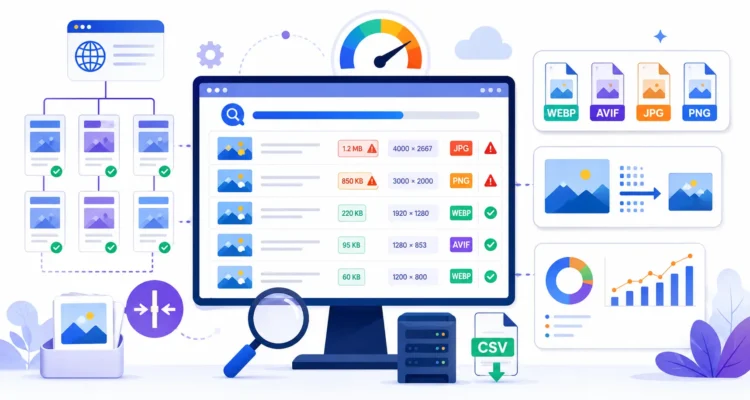
Bulk Image Size & WebP Checker is a free website image audit tool that helps you scan up to 500 URLs and perform a complete image optimization audit. This Bulk Image Size & WebP Checker helps identify oversized images, legacy formats, large dimensions, and possible performance issues.
The tool automatically detects your XML sitemap, discovers eligible pages, scans unique images, checks file size and image dimensions, identifies formats such as WebP, AVIF, JPG, PNG, GIF, and SVG, and then provides a clear optimization status. You can also export the complete report as a CSV file for further analysis in Microsoft Excel or Google Sheets.
Table of Contents
What Is a Bulk Image Size & WebP Checker?
A Bulk Image Size & WebP Checker is a website auditing tool designed to analyze image files across multiple webpages. It checks important image properties such as file size, format, width, height, and whether a modern image format is being used.
Images often make up a large portion of the total page weight on modern websites. A single uncompressed banner or oversized PNG can significantly increase loading time, especially for visitors using mobile devices or slower connections.
Checking image optimization manually may be manageable on a small website, but it becomes difficult when a blog or business site contains hundreds of posts and thousands of images. This tool automates the discovery process and helps you quickly identify which images deserve attention.
Why Are Image Size and Format Important for SEO?
Image optimization can affect both user experience and website performance. Search engines consider page experience and loading behavior as part of the broader quality signals used to evaluate webpages. Large files can make a page feel slow, while properly optimized images can reduce bandwidth usage and improve perceived performance.
Using a Bulk Image Size & WebP Checker regularly can help website owners maintain better image performance as their content library grows. Regular image audits make it easier to discover files that may slow down pages or increase unnecessary bandwidth usage.
Faster Page Loading
Large image files require more data to be transferred from the server to the visitor’s browser. Reducing unnecessary file size can help pages load faster and reduce the amount of bandwidth consumed.
Better Mobile Experience
Mobile visitors may have slower internet connections or limited data plans. Serving appropriately sized images can improve the experience for users browsing from smartphones and tablets.
Improved Core Web Vitals Support
Large images can contribute to slow rendering and may affect metrics such as Largest Contentful Paint when the main visual element on a page is heavy or poorly optimized. Image optimization alone does not guarantee better Core Web Vitals, but it can remove an important performance bottleneck.
Lower Server and Bandwidth Usage
Smaller files require less data transfer. This can reduce bandwidth usage, improve caching efficiency, and help high-traffic websites serve content more efficiently.
How to Use the Bulk Image Size & WebP Checker
Using our Bulk Image Size & WebP Checker is simple and does not require registration.
- Enter your website homepage URL, such as https://example.com.
- Click the Start Image Audit button.
- The tool will search for your XML sitemap.
- Eligible website URLs will be collected automatically.
- The tool will scan up to 500 URLs.
- Images found across the site will be analyzed and deduplicated.
- Review the file format, image size, width, height, status, and recommendation.
- Use the available filters to focus on large images, legacy formats, oversized dimensions, or errors.
- Export the complete report as a CSV file if required.
For the best results, always enter the website homepage rather than an individual article, category, tag, or internal page. The homepage allows the tool to validate the correct domain and locate the site’s sitemap.
What Does the Image Optimization Audit Check?
The image report provides several useful checks for every unique image detected across the scanned pages.
Image File Size
The tool measures the approximate file size of each image and flags files that exceed practical optimization thresholds.
In the current audit:
- Images above approximately 200 KB may be flagged as large.
- Images above approximately 500 KB may be flagged as very large.
These are practical guidance thresholds rather than universal rules. A high-resolution product image or detailed photograph may legitimately require a larger file than a small icon or thumbnail.
Image Format
The checker identifies common image formats including:
- WebP
- AVIF
- JPG or JPEG
- PNG
- GIF
- SVG
- BMP
- TIFF
Modern formats such as WebP and AVIF can often provide smaller file sizes while maintaining acceptable image quality. However, the tool does not automatically assume that every JPG or PNG is wrong.
Large Image Dimensions
The audit checks image width and height and can flag dimensions larger than 2000 pixels. This helps identify images that may be significantly larger than the size actually required on the page.
For example, uploading a 5000-pixel image and displaying it at only 700 pixels wide can waste bandwidth unless the website serves a properly resized responsive version.
Unique Image Detection
The tool deduplicates repeated image URLs. If the same image appears on many pages, it is included once in the main image report rather than creating unnecessary duplicate rows.
This makes large site audits easier to review and helps you focus on actual image files instead of repeated page references.
What Is WebP and Why Is It Useful?
WebP is a modern image format designed to provide efficient compression for web images. It supports both lossy and lossless compression and can often reduce file size compared with traditional JPG and PNG files.
A smaller image can load faster, especially when used in large hero sections, blog posts, featured images, and product galleries.
However, simply converting every image to WebP does not automatically guarantee good performance. A poorly compressed 2 MB WebP image can still be much heavier than a properly optimized 120 KB JPG.
This is why the Bulk Image Size & WebP Checker evaluates both format and file size rather than focusing on file extension alone.
Is PNG or JPG Always Bad?
No. PNG and JPG are not automatically bad formats.
JPG remains useful for photographs and complex visual content, while PNG can be appropriate for screenshots, transparency, diagrams, and graphics where lossless quality matters.
The goal of image optimization is not simply to convert every file to one format. The goal is to choose the best balance between:
- Image quality
- File size
- Browser compatibility
- Transparency requirements
- Visual purpose
If a PNG is already small and appropriate for the content, changing it may provide little benefit. The report should therefore be used as an optimization guide rather than an automatic replacement instruction.
How to Fix Large Images
If the audit identifies large or very large images, several optimization methods may help.
Compress the Image
Image compression can reduce unnecessary data while maintaining acceptable visual quality. The ideal compression level depends on the type of image and how prominently it appears on the page.
Resize Oversized Images
Avoid uploading images significantly larger than the dimensions required by your website. If your content area displays images at 1200 pixels wide, uploading a 6000-pixel version may create unnecessary file weight.
Use Responsive Images
Modern WordPress websites can generate multiple image sizes and use responsive image attributes so browsers can choose an appropriate file for the visitor’s screen size.
Consider WebP or AVIF
If a JPG or PNG is large, converting it to WebP or AVIF may reduce file size. Compare the final quality and file weight before replacing the original.
Avoid Repeatedly Recompressing Images
Repeatedly saving and recompressing a lossy image can reduce visual quality. Keep an original high-quality source file and generate optimized web versions from that source.
Bulk Image Size & WebP Checker Features
- Scan up to 500 URLs: Audit images across hundreds of website pages.
- Automatic sitemap detection: The tool checks robots.txt and common XML sitemap locations.
- Homepage validation: Helps ensure the correct website is scanned.
- Unique image detection: Repeated image URLs are deduplicated.
- Image preview: Quickly recognize each detected image.
- File size analysis: Identify large and very large image files through a detailed image audit report generated by the Bulk Image Size & WebP Checker.
- Format detection: Check WebP, AVIF, JPG, PNG, GIF, SVG, and other common formats.
- Dimension analysis: Review image width and height.
- Modern-format recommendations: Identify images that may benefit from WebP or AVIF conversion.
- Optimization filters: Focus on large files, legacy formats, dimensions, or errors.
- CSV export: Download the final website image audit for further review.
- No signup required: Use the tool without creating an account.
Who Should Use the Bulk Image Size & WebP Checker?
The Bulk Image Size & WebP Checker is useful for website owners, bloggers, developers, SEO professionals, performance specialists, content managers, and digital marketing agencies.
It can be particularly helpful after:
- Moving a website from another platform
- Changing a WordPress theme
- Uploading a large amount of new content
- Importing old blog posts
- Redesigning a website
- Replacing featured images
- Running a page speed optimization project
Older websites often contain images uploaded at different times using inconsistent compression methods. A site-wide audit can help identify these older files quickly.
Why Use a Bulk Image Checker Instead of Manual Testing?
Manual image testing works well for an individual page, but it does not scale efficiently.
Imagine a website containing 400 posts with an average of five images on each page. That could mean reviewing around 2,000 image placements manually.
A bulk audit automates the discovery stage. The Bulk Image Size & WebP Checker scans the site, identifies unique image URLs, and highlights files that may require optimization.
You can then spend your time reviewing and fixing the images that actually matter instead of manually searching through every page.
Understanding the Audit Statuses
Optimized
An optimized status means the tool did not detect a major file-size, format, or dimension concern according to its current audit rules.
Large Image
A large image exceeds the recommended file-size threshold and may benefit from compression or resizing.
Very Large
A very large image is significantly heavier and should be reviewed carefully, particularly if it appears above the fold or is used as a major page visual.
Legacy Format
This status indicates a format such as JPG or PNG that may potentially benefit from conversion to WebP or AVIF. It does not mean the existing image is automatically wrong.
Large Dimensions
This status means the image dimensions exceed the audit threshold. Check whether the full resolution is necessary for the way the image is displayed.
Scan Error
An error can occur if an image or webpage is blocked, unavailable, requires authentication, returns an HTTP error, or cannot be retrieved by the auditing server.
Limitations of the Bulk Image Size & WebP Checker
Although the Bulk Image Size & WebP Checker automates a large amount of image auditing work, the final optimization decision should still be made by a person.
Keep these limitations in mind:
- A JPG or PNG is not automatically a bad image.
- A large image may be required for certain high-resolution use cases.
- Some websites block automated requests.
- Images injected entirely through complex JavaScript may not appear in the initial HTML.
- CDNs may dynamically serve different image formats depending on the visitor’s browser.
- An image URL may use a JPG filename while the server delivers a WebP version through content negotiation.
- File-size thresholds are guidelines rather than universal SEO rules.
Use the audit as a practical starting point and then review the affected pages in context.
Image Size vs Image Dimensions
Image size and image dimensions are two different things.
File size refers to how much storage or transfer data the file uses, such as 120 KB or 1.4 MB.
Dimensions refer to the width and height of the image in pixels, such as 1200 × 640 pixels.
A 3000 × 2000 pixel image can sometimes be well compressed and relatively small, while a poorly optimized 1200 × 800 pixel PNG can still be extremely heavy. This is why the tool checks both measurements.
Combine Image Optimization With Other SEO Audits
Image performance is only one part of maintaining a healthy website. After running your image size audit, continue checking other important SEO elements with our free tools.
- Bulk Image Alt Text Checker – scan up to 500 URLs for missing, empty, or duplicate image alt text.
- Bulk H1 Tag Checker – identify missing or multiple H1 headings across your website.
- SEO Title Length Checker – check title length, estimated width, and search preview.
- Meta Description Checker – review description length and Google snippet appearance.
- Keyword Density Checker – analyze keyword frequency in your content.
- Explore All Free SEO Tools.
- Using the Bulk Image Size & WebP Checker together with other website audit tools creates a more complete optimization workflow. Regular image checks help maintain better performance as new pages and media files are added over time.
Learn More About Image Optimization
For additional guidance, review the official Google Search Central image SEO documentation. You can also learn about modern image performance techniques from the web.dev image performance guide.
Bulk Image Size & WebP Checker FAQs
Is the Bulk Image Size & WebP Checker free?
Yes. The tool is free to use and does not require registration or payment.
How many pages can the tool scan?
The current version can scan up to 500 eligible URLs discovered from the website sitemap.
Does the tool scan every image separately?
The tool discovers images across scanned pages and deduplicates repeated image URLs. This keeps the report cleaner when the same image is reused on multiple pages.
What image size is considered too large?
The tool currently flags images above approximately 200 KB as large and images above approximately 500 KB as very large. These are practical audit thresholds, not fixed Google requirements.
Should every website image be WebP?
No. WebP is often useful because of efficient compression, but the best format depends on the image type, quality requirements, transparency, browser support, and final file size.
Is AVIF better than WebP?
AVIF can provide excellent compression in many situations, but results vary by image. The best approach is to compare quality, file size, browser support, and your site’s image delivery setup.
Is PNG bad for SEO?
No. PNG can be appropriate for screenshots, transparency, logos, diagrams, and certain graphics. The main concern is whether the image is unnecessarily heavy for its purpose.
Why does the tool report large dimensions?
The image may be much larger than the size required by the webpage. Reducing dimensions or using responsive image sizes can help reduce unnecessary data transfer.
Why does an image show an unknown size or dimensions?
The server may block the image request, the file may use an unsupported format, or the image may be delivered dynamically in a way that prevents the scanner from reading all properties.
Can I export the website image audit?
Yes. You can export the results as a CSV file and open the report in Microsoft Excel, Google Sheets, or another spreadsheet application.
Final Thoughts
Large and poorly optimized images can gradually accumulate as a website grows. The Bulk Image Size & WebP Checker helps surface these problems before they affect performance. Finding these files manually becomes increasingly difficult when hundreds of pages are involved, which makes the Bulk Image Size & WebP Checker useful for recurring audits.
The Bulk Image Size & WebP Checker gives you a faster way to scan up to 500 URLs, identify heavy image files, review formats and dimensions, detect potential WebP or AVIF opportunities, and export the results for further action.
Run the tool above, review the flagged images, optimize genuine issues, clear your website cache where necessary, and then run another audit to confirm your improvements. Combined with alt text, H1, metadata, and broken-link audits, the Bulk Image Size & WebP Checker can make image optimization part of a consistent website maintenance workflow.
